
Guidelines on Correctly Using a Project Management System
Written By: Shane Clark on June 12, 2020
If you are doing more than a “one-off” fix on a website, it is more efficient to utilize a project management system. I have been working with web development agencies for over 11 years. During this time, I have probably used over 20 unique project management systems. Regardless of the PM system used, the idea is to prevent “I sent that already / I told you that already.” Correctly using a PM system will pretty much eliminate those words. The three project management systems I use the most consistently are Basecamp(2/3), Teamwork, and Asana.
I have outlined what I consider the defining characteristics of almost any project management system. These will vary slightly between systems but conceptually remain the same.
1 – Correctly utilize todo/task lists
2 – Reference the digital asset in an absolute URL
3 – Title structures / well-named todos/tasks (page name | simple title)
4 – Reference the URL to the page per task / Todo
5 – Screenshots per task/todo where they make sense
6 – Static information placement
7 – Assignment of tasks
8 – Every task contains the information needed to complete the task.
9 – Using the Task Thread to Notify of Changes / Updates
10 – Restate the Question Being Asked
11 – Tasks Do Not Contain Extra Information
1 – Correctly utilize todo/task lists
Every PM system will have both tasks and task lists. The task is the individual task, while the “task list” contains multiple tasks inside it. In many systems, you can create a project template to define predetermined lists with the task already added inside of the lists. The things to keep in mind is being organized and not making unnecessary task lists.
2 – Reference the digital asset in an absolute URL
Referencing the digital asset with a direct link is a fancy way of saying, “don’t tell me just the name of the file / file type and make me hunt around for it.” In most cases, when you click on the asset, say a header image to replace; the URL to that image is in your browser bar.
Wrong-Way:
Replace the “about us” content with the Microsoft Word document that I added last week.
Correct-Way:
Here -> Https:_____________ (link to the Word Doc) is the Microsoft Word document that will replace the “about us” content.
It should never be required to hunt around for a needed file to complete a task.
3 – Titles structures / well-named todos/tasks (page name | simple title)
If I had my way, there would be a character limit to a task/task list. A well-named task gives just enough information to create a reference point. The needed information related to the task should reside inside the task itself.
Examples of Well DefinedTasks:
Home Page – Slider Image Change
Contact Page – Change Out Map Location
Global – Update Favicon
As you can see in the above examples, the task name is just a clue to be able to reference the overall effort. It should give enough of a clue, so if two tasks have a dependency on one another, they can be dealt with in the required order.
4 – Reference the URL to the page per task / Todo
I probably have to ask, “please add the URL per task” no less than 20 times per week. There are multiple reasons why having the URL inside the task will save time and possibly avert disaster. I have listed the major ones, along with supporting screenshots.
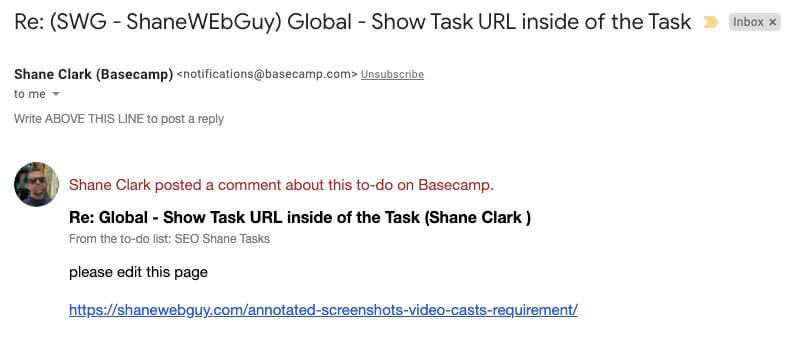
Ability To Access the Page Needed to Edit from Email
One of the major reasons the page URL is helpful per task is the ability to engage the page URL directly from the email. I have included an annotated screenshot demonstrating how this can be useful below. If the page URL is added, I can click directly from the email to get started with the edit.
Having to Hunt Around for the URL
At any given time, I might have 10-15 ongoing projects in various states. In a perfect world, I would have all the URLs for the 1000s of tasks I’m working on. In an imperfect world, I have to look around for all the pages, files, and tasks that need my attention.
Making the Change on the Wrong Environment
Making the change in the wrong environment (development/staging/production) is one of the more significant reasons for listing the URL per task. I have seen where a request comes in to make a page edit, and it’s done in the wrong environment. Usually, this will go one of two ways:
1 – The change in the wrong environment will need to get replicated again.
2- Everyone is mad as the change was made on the production server and meant only for staging/development.
5 – Screenshots per task/todo where they make sense
I am a firm believer that a developer has the inherent right to request annotated screenshots as needed. There are many tools that will do this in a way so that a non-technical user can provide them on-demand. A web design/marketing agency should never question a request for a screenshot. Even with my retail clients, I make every attempt to make sure this is clear.
It is even better if the screenshot comes back in the form of a URL. This way, it is portable. If I get a screenshot such as this one:
https://www.screencast.com/t/k2YjMPj4GS, I have more options.
I can comment back using the screenshot again as a reference.
Example:
This -> https://www.screencast.com/t/k2YjMPj4GS edit had been completed.
I have the option to copy/paste the same screenshot back into an email to a client that might not be part of the PM system.
Example:
Dear Client,
This edit -> https://www.screencast.com/t/k2YjMPj4GS has been completed.
Thanks,
Shane
The screenshot to the URL creates flexibility.
6 – Static information placement
The placement of static information takes a bit of thought. When adding a piece of information that could need to be re-used, it is best to place it in a “notes” or “notebook” section where it can easily be discovered later. If a dropbox link with necessary design assets gets added to a task and the task is closed, it will be harder to locate the information later.
7 – Assignment of tasks
The assignment of tasks has historically been a sticking point for me. If a task is assigned to an individual, I am a firm believer that there should be a “tangible action” needed to be done by the person assigned to it. Where this might vary due to personality requirements is in the case of the owner of a digital marketing agency. If there is one “Tim Cook” (CEO of Apple / busy person), the system will not suffer as much, but when multiple people are not able to accept responsibility for the assignment of their own tasks, it makes it hard.
8 – Every task contains the information needed to complete that task.
Inside every task should have all the information to complete that specific task. Even if “Task A” needs to contain a link to “Tasks B/C” for reference. This is one concept that never made it to any of my training videos, but I see it as critical for a project’s success. Adhering to this model means that a person without previous knowledge of the project can jump in and complete the task.
9 – Using the Task Thread to Notify of Changes / Updates
Another best practice I find is posting an explanation of what has changed within the task thread. Changing the original instructions within a task can be confusing if it is not pointed out in the main threaded message.
Even a notice in the thread that says, “be advised the instructions in the main task have changed and been modified.”
10 – Restate the Question at the Top of the Thread
I find that many cases in a long thread, the original question/clarification gets lost and needs to be restated. Restating the question will bring back into focus exactly what is needed to keep the project moving along. In many cases I see the statement “you did not answer my questions” vs. listing back the originals question(s) that were previously asked. In the cases of multiple questions, these should be listed in a clean bulleted list.
11 – Task Do Not Not Contain Extra Information
A task should only include the information needed to complete that one specific task. If you have a Going Live task, everything inside it should relate only to the site launch. If someone realizes that another item is needed, such as a newsletter update or a change to a homepage image, that belongs in a new task. Adding unrelated details makes the task confusing and increases the chance something important gets missed.
Keeping tasks clean and focused helps everyone stay organized. It also makes it easier for team members to jump into any task and complete it without sorting through unrelated information. If something does not directly support the goal of the task, create a separate task for it.
Summary
This collection of PM system requirements is based on over a decade of experience. In 99% of the cases, doing it precisely takes around the same amount of time as taking shortcuts. I made a video example using Basecamp 2 as the project management system. In theory, there is no reason why most, if not all, of these principles, shouldn’t apply to every system. If you have any questions, feel free to contact me.
